
At the end of each academic year, all Teams are archived ready for the new academic year. This guide will show you how you can access these Teams to access historic conversations, files and assignments.
How can I access archived Teams?
When Teams are archived they are moved to another view. This allows you to easily identify archived teams.
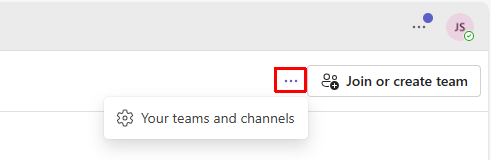
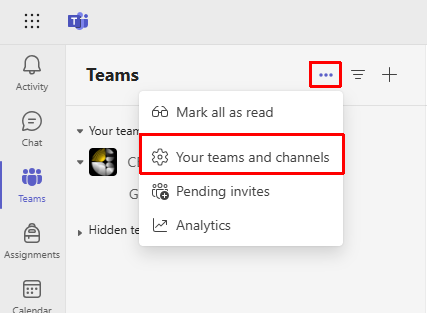
Select the three dots from either the top right in the tile layout or at the top of the list on the left hand side from the list layout, and select ‘Your teams and channels’
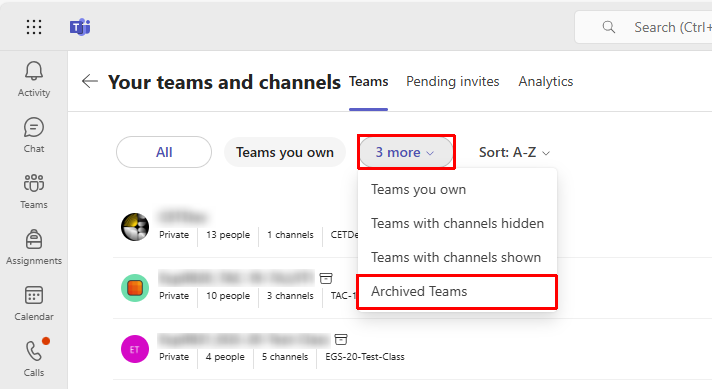
The ‘Your Teams and Channels’ view will give you a view of all Teams you have access to. To filter to just Archived teams click 3 more and select Archived Teams.
How can I restore an archived Team?
Please contact your IT support team for support restoring or migrating a Team.