
Use the following guidance on how you can easily access shared mailbox’s with outlook online.
Opening a mailbox in a new tab
Login to outlook online either through the Outlook tile on the portal, or by navigating to https://outlook.com/cetcloud.org.uk
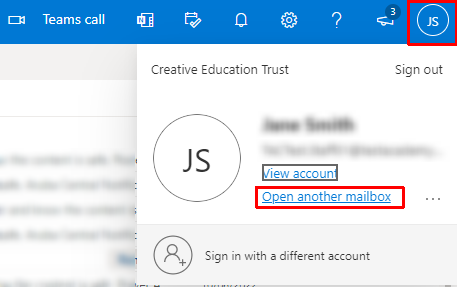
Click on either your photo or initials in the top right hand corner and select ‘Open another mailbox’
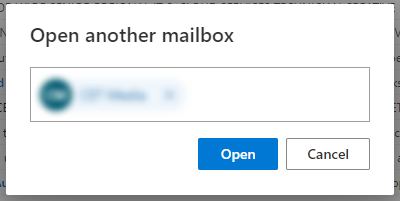
Enter the email address for the shared mailbox you would like to access and click open. This will now open the mailbox in a new tab.
Adding a shared mailbox to Outlook online under your own mailbox
If you prefer not to have too many tabs open and would like to work from a single window, you can add the shared mailbox into Outlook online and it will be there every time you navigate to Outlook.
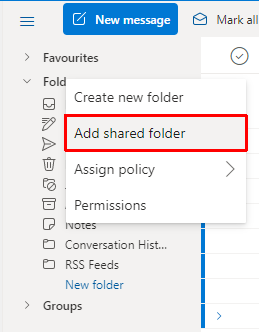
Within Outlook online right click on Folders at the top of the left hand menu and select ‘Add shared folder’
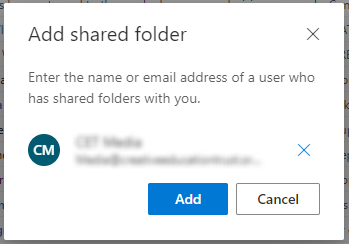
Enter the email address of the shared mailbox you would like to add and select add.
The inbox for the shared mailbox will now appear below your own emails.
Sending from shared mailbox
When adding the mailbox under your personal mailbox, you may need to switch who you are sending from. Use the steps below to change the from email when sending an email.
To create a new email click on ‘New message’
On the top bar click on the 3 dots and select show from
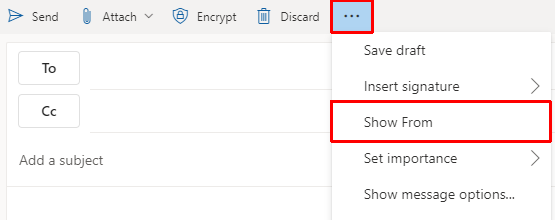
You will now see the From field above the To field in the email pane. To send from the shared mailbox click on from.
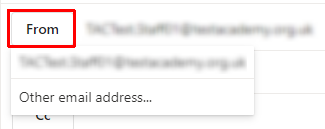
If the shared mailbox email in not in the list, click on other email address’ to add the shared mailbox email account to your From selection