
Microsoft 365 is used for many services including email, OneDrive, SharePoint and Teams, it is also used to authenticate onto other key third party services. Setting up Multifactor authentication on your account ensures that your school account is kept secure by providing an additional layer of security. This makes it significantly more difficult for hackers to gain unauthorised access to your account.
Multifactor authentication uses a second device (in most instances this will be your mobile phone), which is used as a second form of authentication when logging in to your account from a non-trusted location and device. You can either use the Microsoft Authentictor App or the text message option as the second form of authentication on your phone.
Setting up Multifactor Authentication
To set up Multifactor authentication on your account navigate to aka.ms/MFASetup and type in your email address.
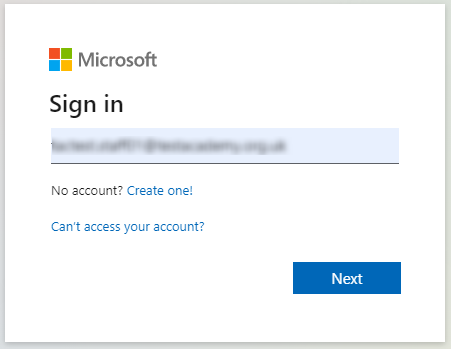
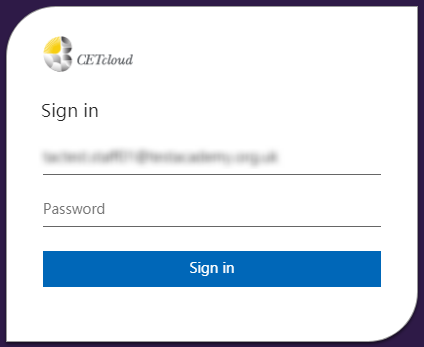
You will now be prompted to sign in with your username and password.
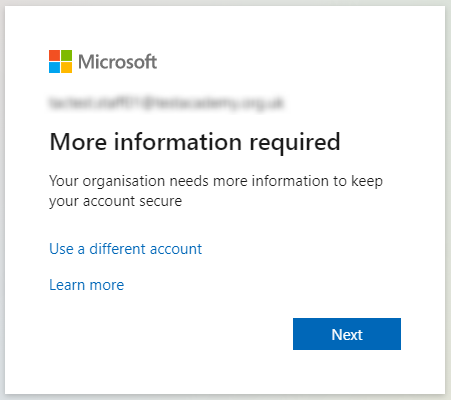
Once signed in you will be told that more information is required. This will now take you through the steps of setting up Multifactor authentication on your account.
Now select how you would like to authenticate from your device, this can be via a code using the Authenticator App on your phone, or via a phone call or text. We recommend using the Authenticator App.
Microsoft Authenticator app – Recommended
The authenticator app is the recommended method for setting up Multifactor authentication. This uses an app on your phone to generate the code. This method does not require you to enter your mobile number.
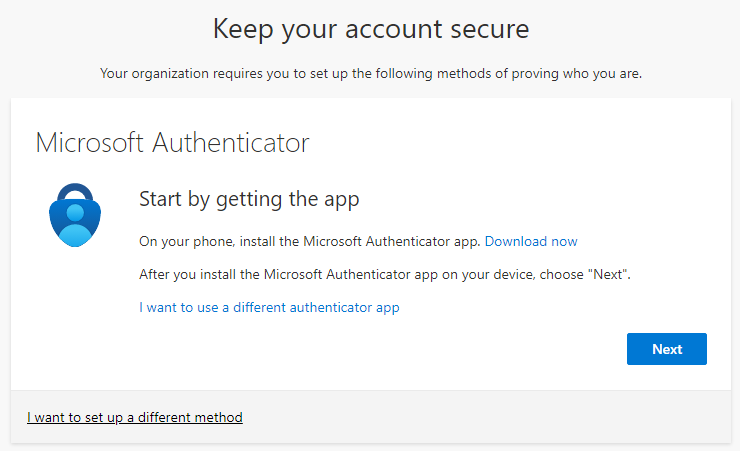
Follow the steps on screen to set up Multifactor authentication on your account.
Once you have completed the set up steps you will now see the screen below.
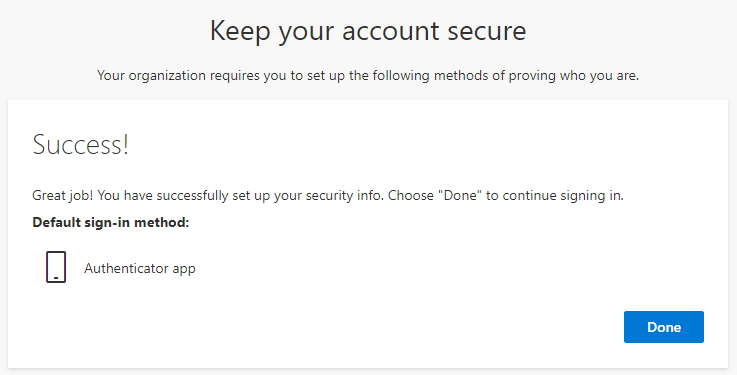
Text message authentication
If you would prefer to receive a text message rather than installing the Authenticator app on your phone. use the following steps.
Click on ‘I want to set up a different method’ on the Keep your account secure screen.
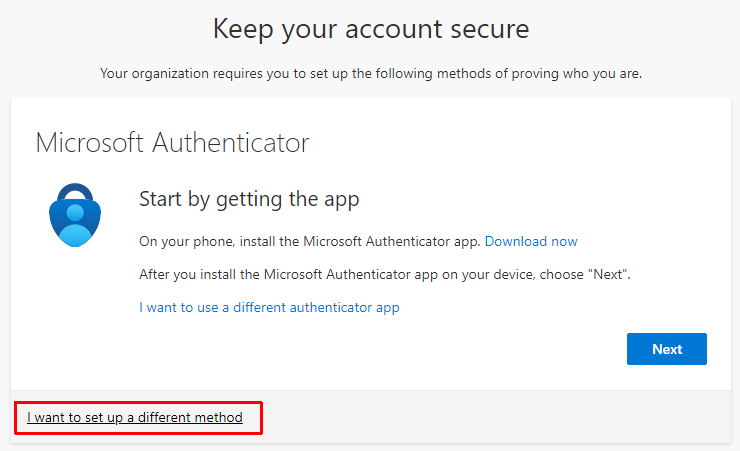
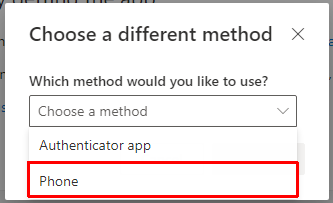
Select phone from the drop down
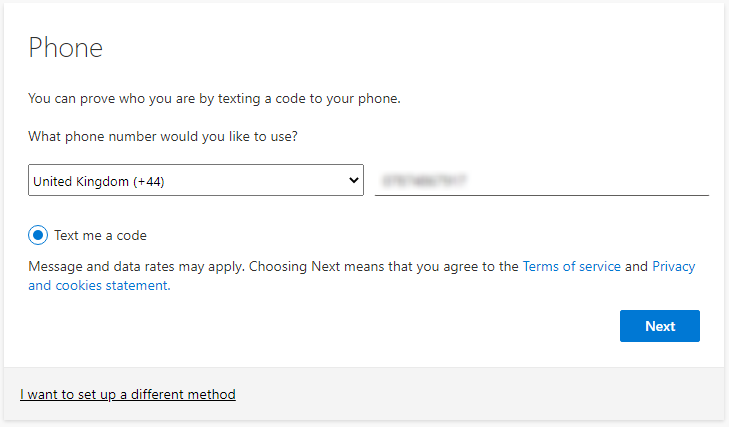
Now select United Kingdom (+44) as the region and enter your phone number.
You will now receive a text message with a verification code. Enter this code and click next.
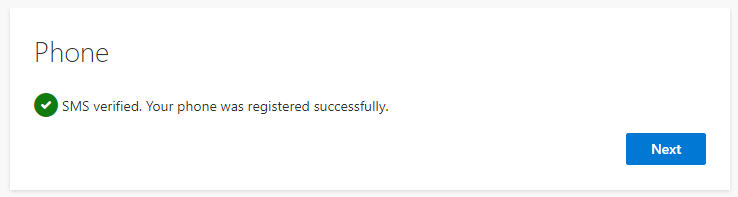
You will now see the screen below to confirm you have successfully set up Multifactor authentication with your phone number.
Check or update your MFA security information
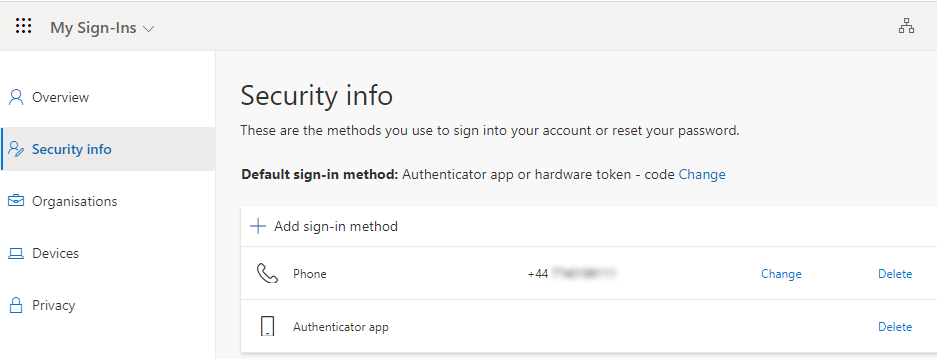
If you need to check or update your Multifactor authentication information or method, navigate to https://mysignins.microsoft.com/security-info
To ensure it is you who is updating your details, you will be prompted to enter your authentication code to make changes.
Once logged in you are able to check your details such as phone number, or add/remove authentication methods.
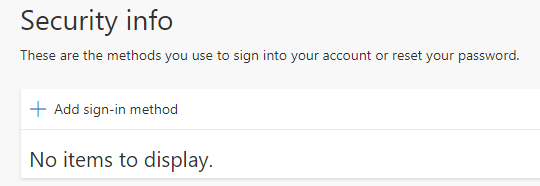
If you see the screen below indicating that there are no MFA authentication methods set up, click the link below and follow the guidance from the beginning of this page to get set up with Multifactor authentication.
Troubleshooting
I am being blocked when trying to set up Multi factor authentication
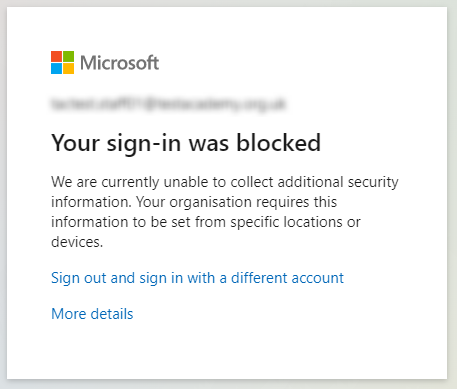
If you receive the message below it is likely that you are trying to set up Multifactor authentication from an untrusted location. Please contact your IT Support team for support on setting up your account away from a trusted location or device.
I have changed my phone, or phone number and I am now unable to log into my account
Please contact your IT Support team who will be able to remove your old authentication method and allow you to re-set up Multifactor authentication.