When you enrol your mobile device with Office 365 to access school email and other resources, the following settings are enforced to ensure that your device meets the minimum security requirements before allowing access to school emails and other resources on Office 365.
What are the minimum security requirements?
iOS/Android
| Setting | Description |
|---|---|
| Passcode | Requires a password/pin to be set on the device with a minimum of 4 characters. Simple Passcodes are also disabled eg 1111 or 1234. |
| Screen lock | Screens should be set to automatically lock after 1 minutes of inactivity. |
| Data Encryption | Encryption should be enabled on the device. This is typically on by default. |
| Jail broken | The device must not be jail broken. |
| Managed email profile | Once the device has been enrolled email will be automatically set up on the device. Existing email profiles should be removed before enrollment. |
Android minimum OS version
| Version name | Version Number |
|---|---|
| Android Oreo | 8.1 |
iOS minimum version
| iOS version |
|---|
| 12.5.3 |
Windows/ MacOS
| Setting | Description |
|---|---|
| Password | Requires a password/pin to be set on the device with a minimum of 4 characters. Simple Passcodes are also disabled eg 1111 or 1234. |
| Screen lock | Screens should be set to automatically lock after 4 minutes of inactivity. |
| Data Encryption | Encryption should be enabled on the device. This is typically on by default. |
Windows minimum OS version
| Version name | Version Number |
|---|---|
| Windows 10 | 2004 |
Mac minimum OS version
| Version name | Version Number |
|---|---|
| Mojave | 10.14 |
What information can CET/the school see from my device?
- Model eg iPhone 7, Samsung G920F
- Serial Number
- Device type eg iPhone, Android
- Operating System eg iOS 12.2, Android 9
- Mobile Operator eg O2, Vodafone, EE
- Mobile Number – the last 4 digits of your mobile number
Information that CET/the school are NOT able to see.
CET/the school are unable to view any personal information on your device, this includes but is not limited to:
- Photos, videos
- Web history
- Contacts
- Location
- Text messages
- Other personal email accounts
- Installed applications
What is CET/the school able to do with my device
Selective wipe
Selective wipe gives CET/the school the ability to remove all Office 365 data from a device if it is believed that the device has become compromised, lost/stolen or if the device belongs to a member of staff who has left and it is believed that school data is still on their mobile device.
Full wipe
CET/the school do have the ability to wipe the entire device, which will factory reset the mobile device. This will never be used unless there is full agreement with the device owner.
Android messages
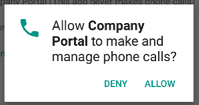
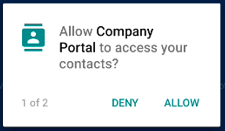
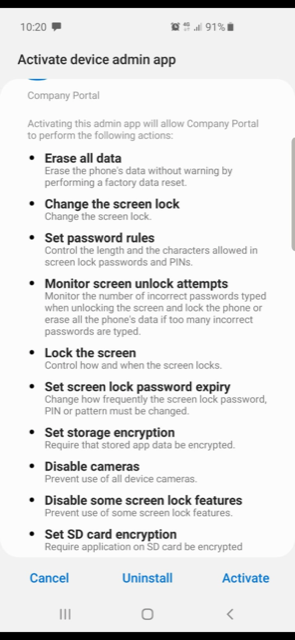
The messages below may also be displayed when enroling an Android device, these are standard Android messages containing some settings that are not managed within Office 365 (such as make/manage phone calls, access to contacts or the ability to disable the camera). See the beginning of this guide for a full list of the settings that are enforced as part of the enrolment process.