
Setup Multifactor Authentication
See the below methods for configuring a passkey on your device. Our recommended a approach is to configure passkeys using the Microsoft Authenticator app, this is the most secure method and will work across both Apple and Android phones.
Ensure you have the Microsoft Authenticator app installed on your phone before you start.
Navigate to https://aka.ms/mfasetup on your computer and log in with your work username and password. You will be prompted here to login with your current MFA method.
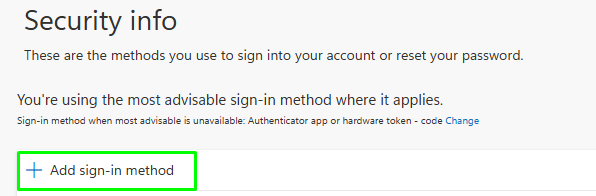
Select + Add sign-in method
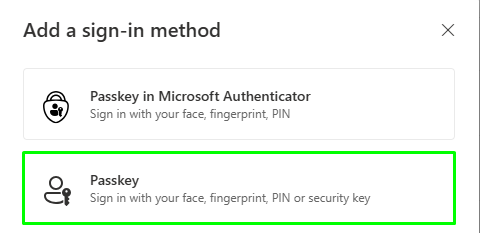
Select Passkey in Microsoft Authenticator

If you have already installed Microsoft Authenticator click next. Otherwise install the app and then click next.
Next follow the instructions on screen and within the Microsoft Authenticator app
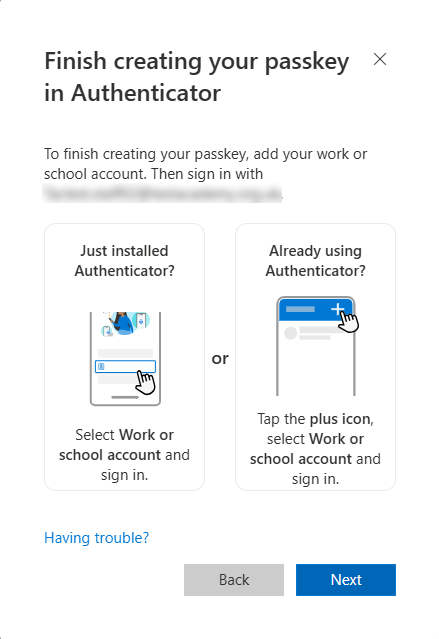
Once complete click next to verify the Passkey has been configured successfully.
Navigate to https://aka.ms/mfasetup and log in with your work username and password. You will be prompted here to login with your current MFA method.
Select + Add sign-in method
Select Passkey
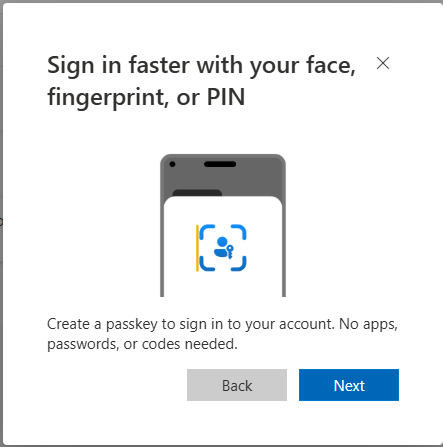
Select Next to start the setup process
You will now be redirected and shown a QR code which you can scan with your device. If you are prompted to choose where to save your passkey select iPhone, iPad or Android device.
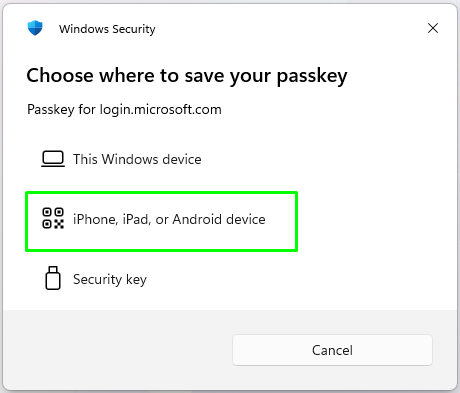
Open the camera app on your iPhone or iPad and scan the QR, selecting save a passkey
If you have multiple Password managers on your phone you will be prompted where to save the passkey. It is recommended to select Save in Passwords. Select this option and select save passkey
Back on your computer you will be prompted to name the passkey. Select Next
Your passkey is now configured on your iOS device, if using Apple Password your passkey will be synced across your devices.
Navigate to https://aka.ms/mfasetup on your computer and log in with your work username and password. You will be prompted here to login with your current MFA method.
Select + Add sign-in method
Select Passkey
Select Next to start the setup process
You will now be redirected and shown a QR code which you can scan with your phone. If you are prompted to choose where to save your passkey select iPhone, iPad or Android device.
If your camera app supports QR codes and Passkeys you will be prompted to save your passkey
Once you have saved your passkey, you will be prompted on your computer to name the passkey.
Known issues
I am unable to log in to Microsoft Authenticator as it is requesting my current MFA code
iOS – At the bottom of the authentication screen you will see a button to Get codes, select this and tap the code you require to copy the code allowing you to complete the authentication process
Android – Please select sign in with an alternative method and select text message. If you do not see this option please contact IT support for a temporary access password to complete the authentication process.
I am not seeing the option for iPhone, iPad or Android Device on my computer
Passkey uses Bluetooth to ensure you are in the proximity of the device you are authenticating to. Your phone doesn’t need to be paired to your computer however Bluetooth need to be available and enabled on your computer.
Windows Hello for Business (Domain machine) Temporary unavailable
Once you have configured Windows Hello for Business on your machine, it can take up to an hour for this change to sync with Microsoft 365 before it can be used. Please use your password whilst waiting for the sync to complete
Unable to set up or use Passkey on BYOD
We are aware of an issue where passkeys aren’t able to be configured or used when connected to BYOD. Please disconnect from BYOD to set up and use Passkeys
Leave a Reply