
Microsoft Teams
Closed Captions can be enabled in a Teams meeting. Each user who would like to see close captions will need to complete the following steps for the captions to appear for them.
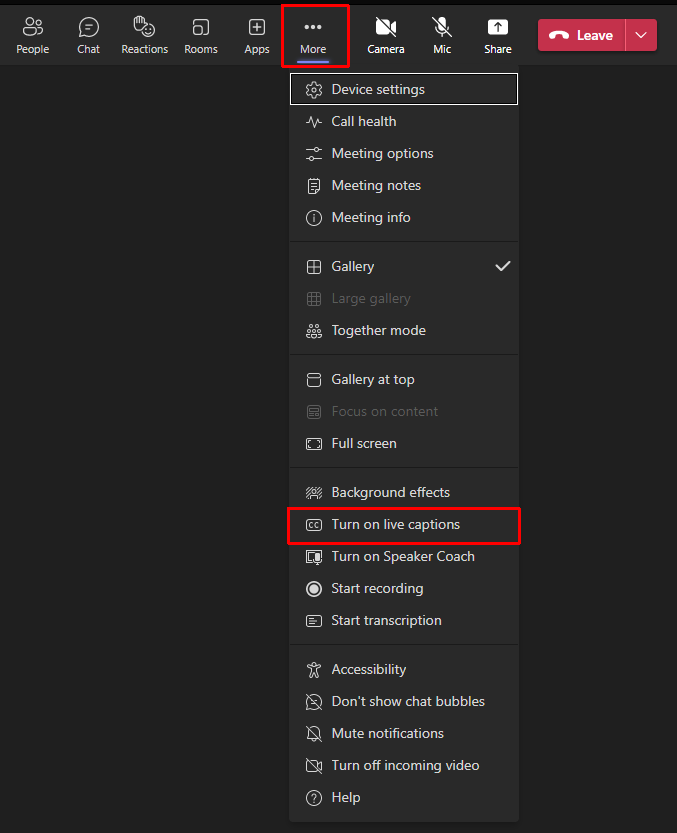
- Click on the ‘More’ menu
- Select ‘Turn on live captions’
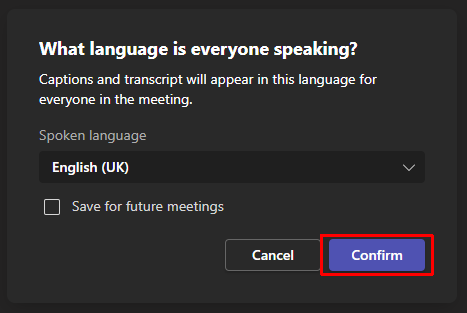
- Ensure English (UK) is selected and click confirm
Captions will now appear at the bottom of the screen.
Videos in Microsoft Stream
Closed Captions can be enabled in Microsoft Stream such as for Microsoft Teams meeting recordings and videos hosted on SharePoint and OneDrive. Follow the steps below to enable Closed Captions.
- Click play on the video
- Click on the Closed caption (CC) button highlighted below

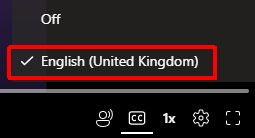
- Select “English” on the pop up to enable Closed Captions
Captions will now appear at the bottom of the video.