
Removing your email signature in the iOS mail app (iPhones/iPads)
- From your iOS/iPadOS device open the settings app
- Scroll through and find the Mail app
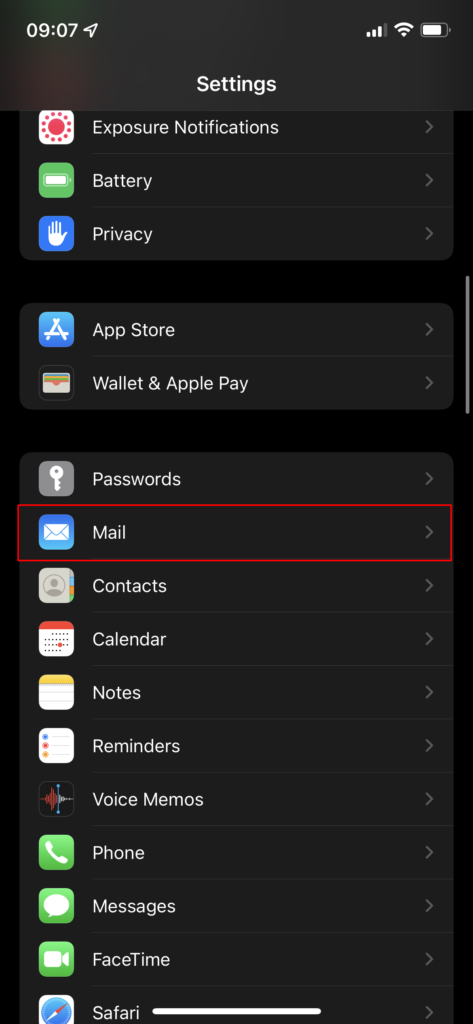
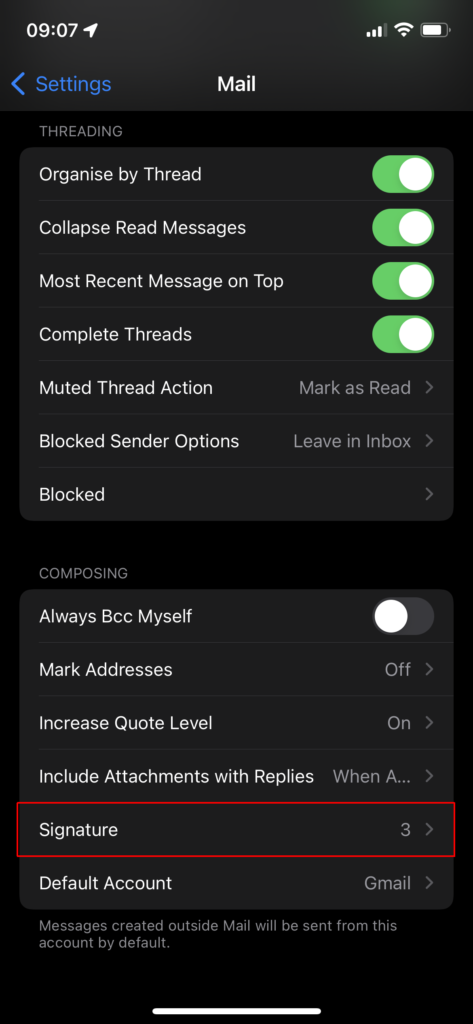
- Within the Mail app settings scroll down and select signature
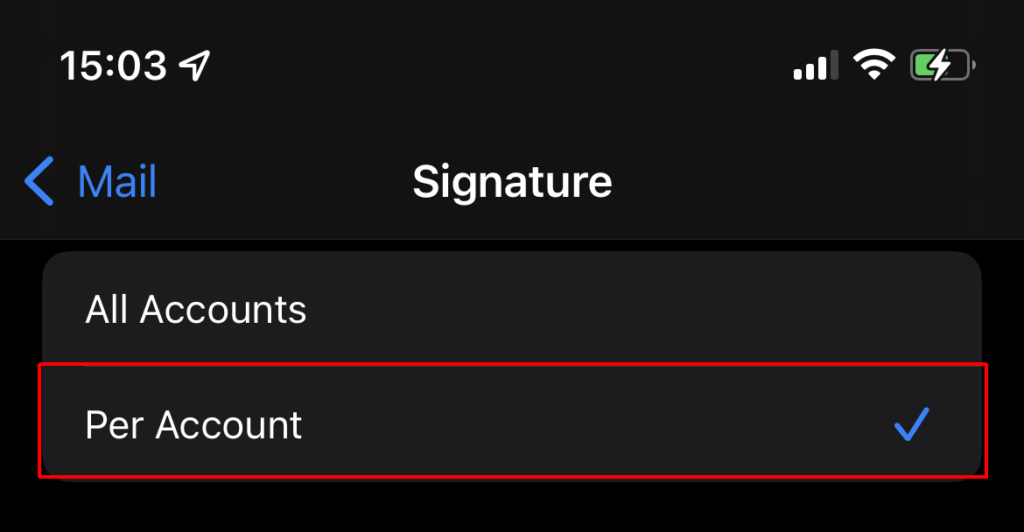
- If you have multiple email accounts added, ensure you select the “Per Account” option
- Delete the signature in the signature field for your work account (usually called Exchange). You can delete your signature by pressing and holding within the signature field and then selecting the select all option and then clicking the back button on the keyboard.
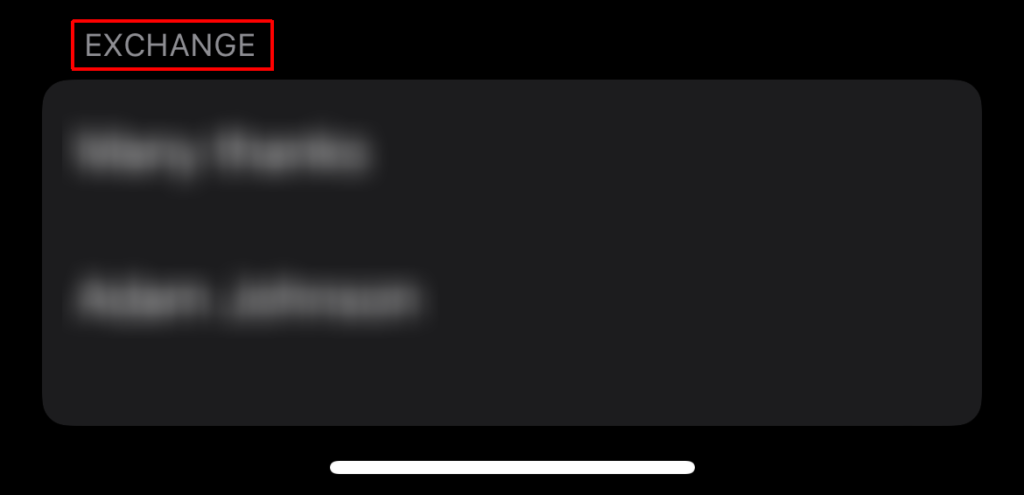
- The email signature field should now be blank (showing an empty white box)
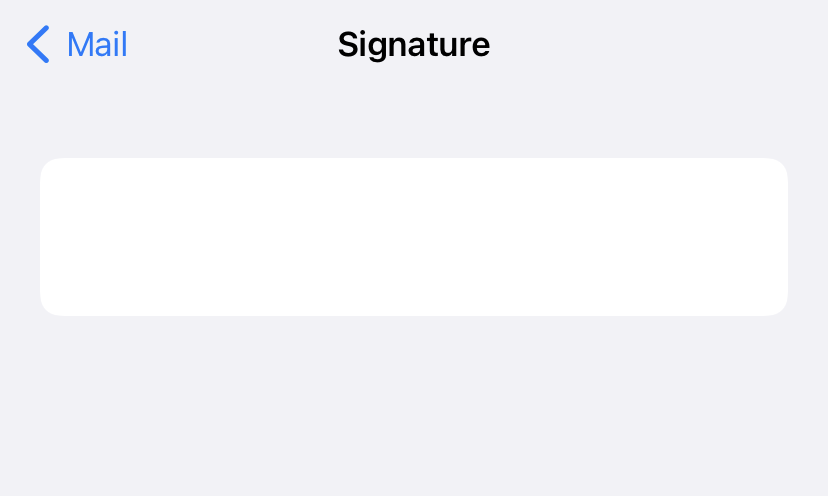
- You have successfully removed your email signature.
You can now select the back arrow to complete the process. Emails sent from your work account from the Mail app will now automatically add your signature
Removing your signature from the Outlook mobile app
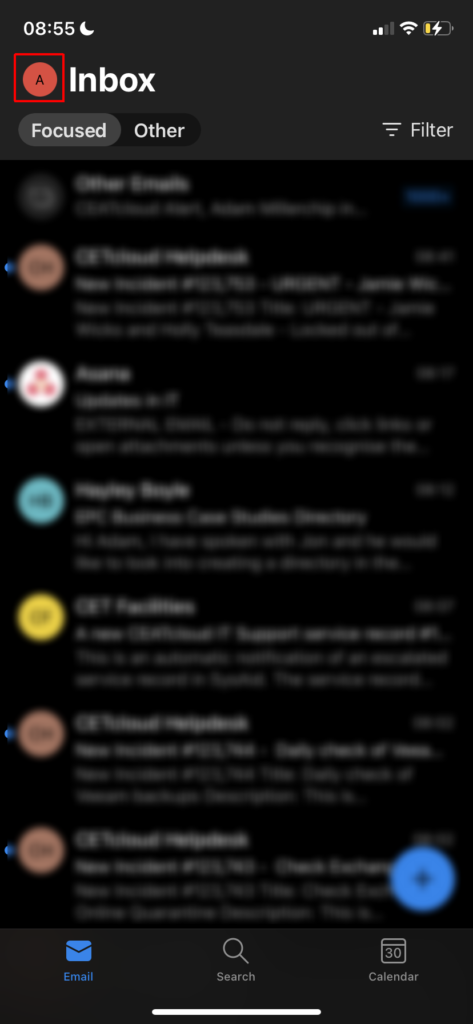
- Select the icon in the top left corner of the screen
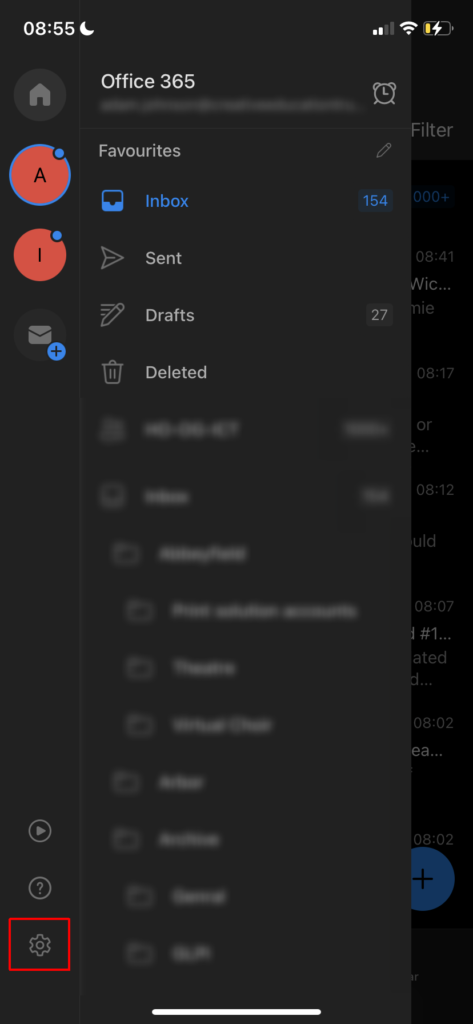
- Click on the cog icon at the bottom left of the screen.
- Within settings select the Signature option
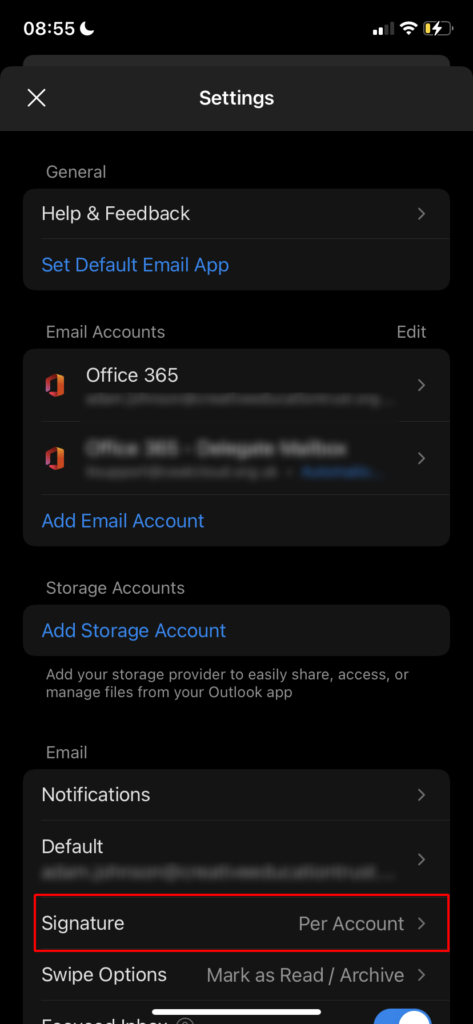
- If you have multiple accounts linked in Outlook, click on the on the “Per Account Signature” option. If you only have the one account, please skip to the next step below.
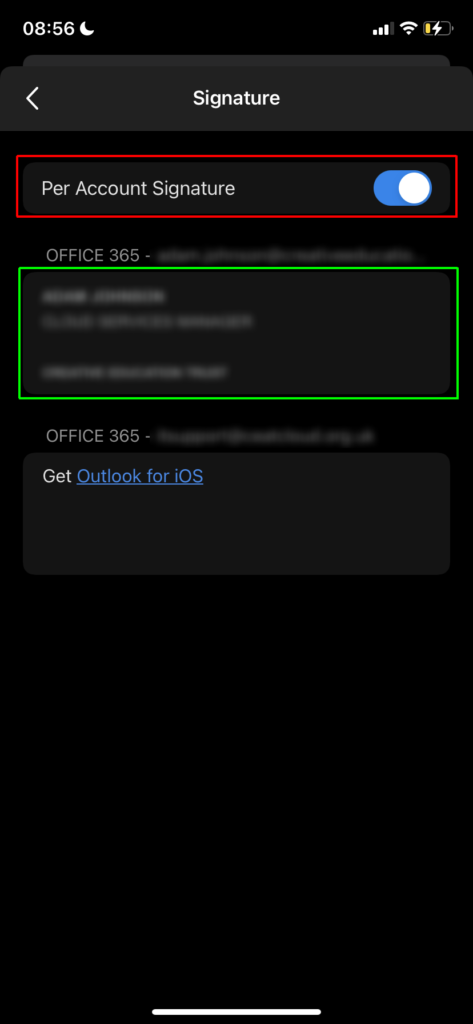
- Delete the signature in the signature field for your work account (usually called Exchange). You can delete your signature by pressing and holding within the signature field and then selecting the select all option and then clicking the back button on the keyboard.
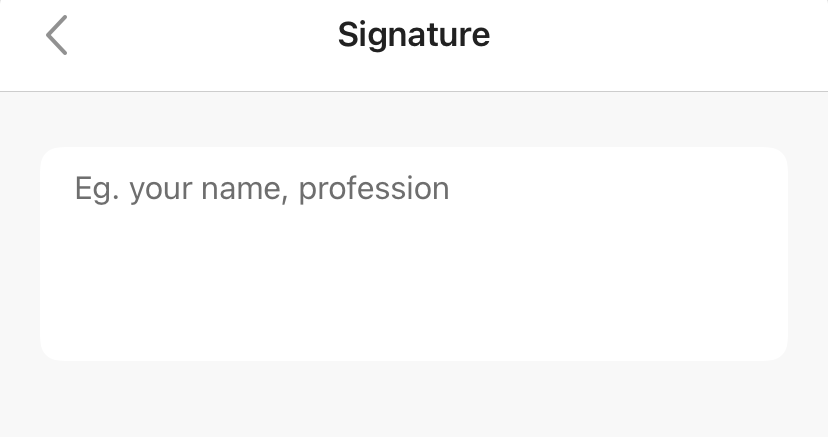
You can now select the back arrow to complete the process. Emails sent from your work account from the Outlook mobile app will now automatically add your signature