
Before you begin setting up your email signature, send a blank email to yourself with the correct email signature format on your computer (remove any spacing before the email signature within the message).
Open the email on your mobile device, press and hold over the name part of your signature. The context menu will appear over the text, tap “Select All” and then tap Copy. Now follow the steps below to add your email signature to the iOS mail app, or if you use the Outlook mobile app click here for instructions.

Setting up your email signature in the iOS mail app (iPhones/iPads)
- From your iOS/iPadOS device open the settings app
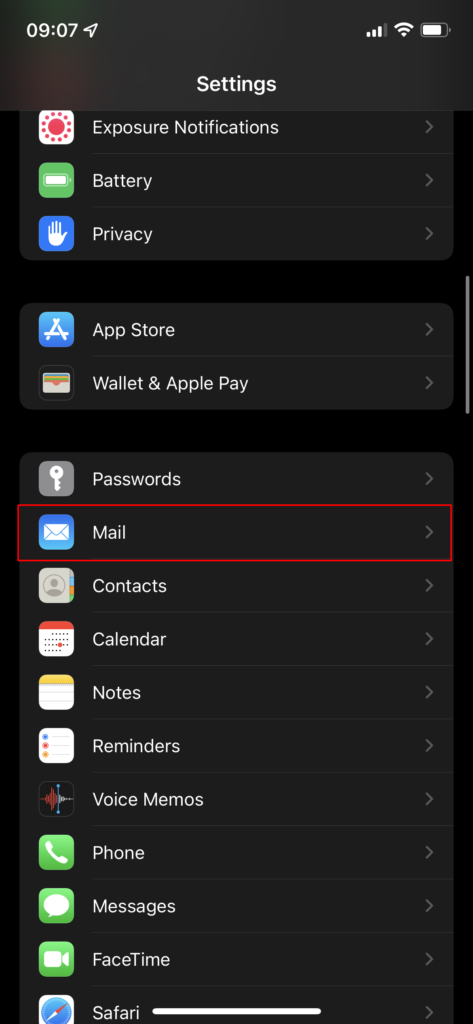
- Scroll through and find the Mail app
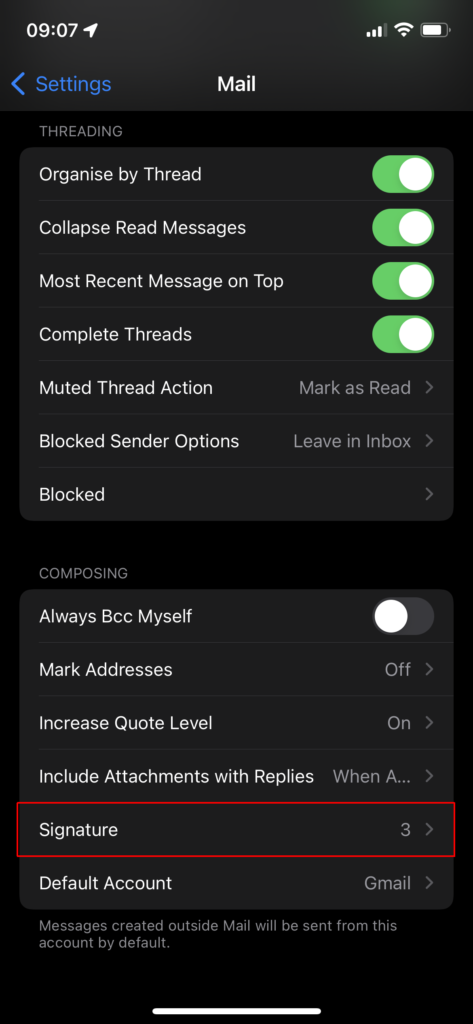
- Within the Mail app settings scroll down and select signature
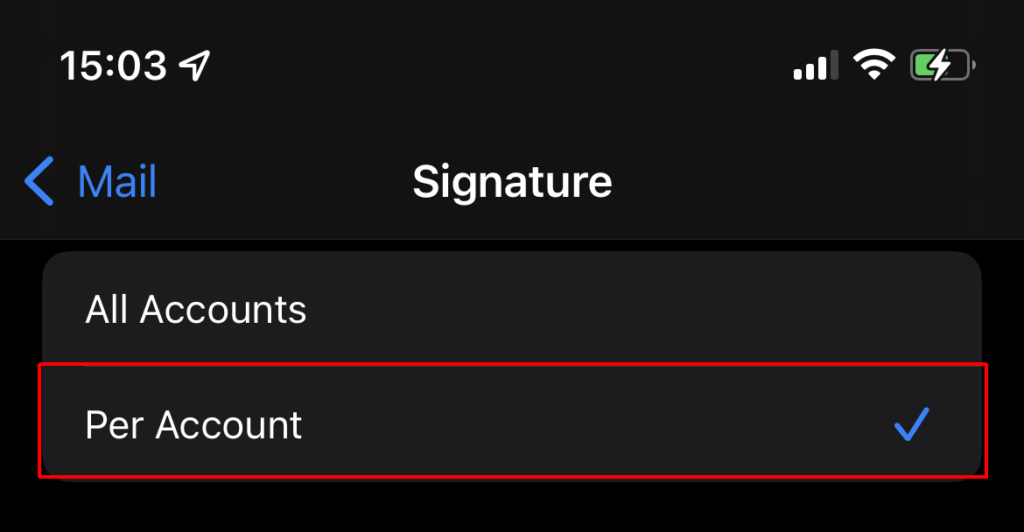
- If you have multiple email accounts added, ensure you select the “Per Account” option
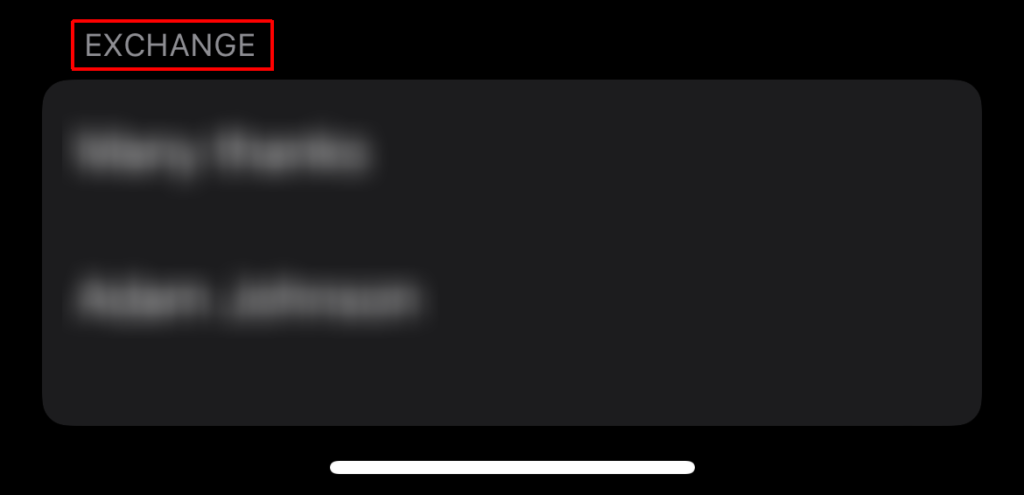
- Paste your signature into the signature field for your work account (usually called Exchange). You can paste your signature by pressing and holding within the signature field and then selecting the paste option when the context menu appears.
- Your email signature will now appear in the editor, however the orginal formatting will have been lost due to the automatic formatting that iOS adds when pasting text. What you need to do now is shake your iPhone/iPad to trigger the “Undo Change Attributes” context menu and then select Undo.
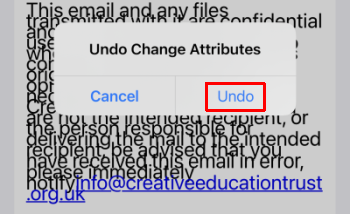
Your signature should now look similar to the format on your computer, however you may still need to remove some changes to the formatting that iOS adds such as underlining the address and phone number. Follow the steps below to remove this.
- Remove the underlined address and telephone number – triple-tap over the address (you may need to expand the selection by dragging it), and then click on the BIU option (you may need to click the right arrow if you don’t see it), then click the Underline option. Do the same for your phone number(s) and the registered office address.
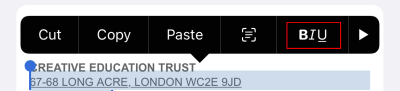
- Remove the blue formatting from the company number – delete the company number along with the space before it, then add a space and retype the number “7617529”
- At the end of the signature block you may be missing a space between “notify and info@…”, tap at the end of the signature block, then tap and hold moving the curser between “notify and info@…” and then add a space.
You can now select the back arrow to complete adding your signature. Emails sent from your work account from the Mail app will now have your correct signature attached.
Setting your signature in the Outlook mobile app
- Copy your your existing email signature as specified at the beginning of this guide, then open the Outlook App on your device.
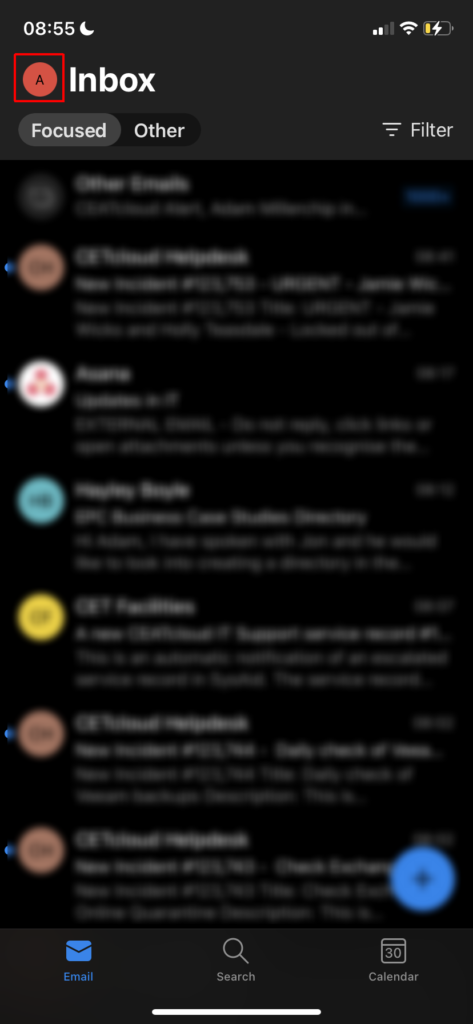
- Select the icon in the top left corner of the screen
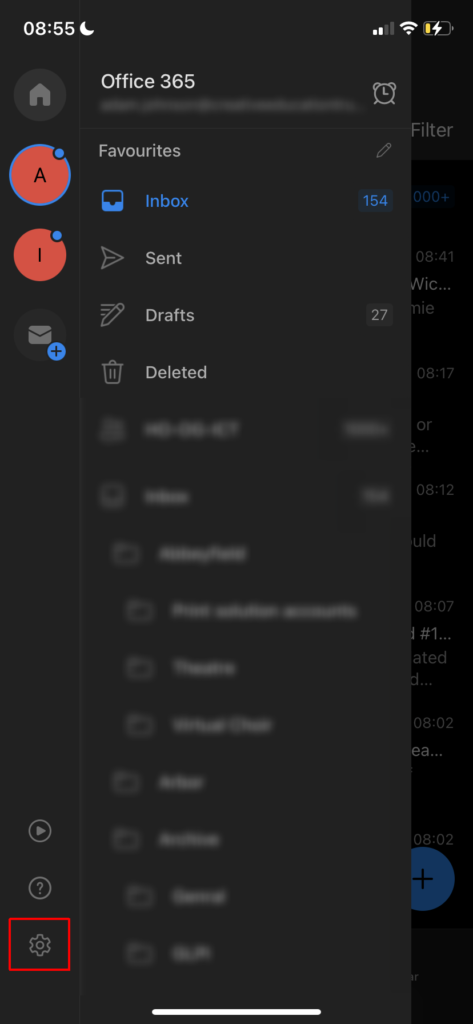
- Click on the cog icon at the bottom left of the screen.
- Within settings select the Signature option
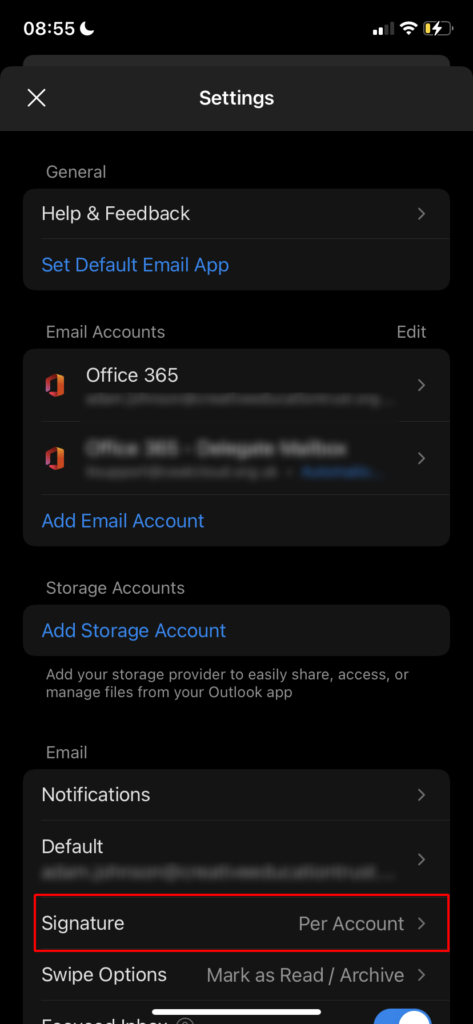
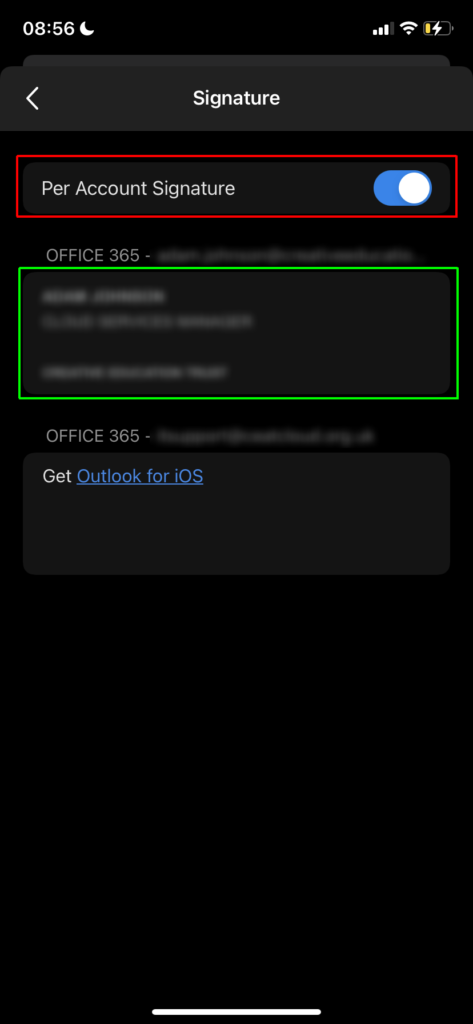
- If you have multiple accounts linked in Outlook, click on the on the “Per Account Signature” option
- Paste your signature into the signature field for your work account. You can paste your signature by pressing and holding within the signature field and then selecting the paste option when the context menu appears.
Your signature should now look similar to the format on your computer, however you may still need to remove some changes to the formatting that iOS adds such as underlining the address and phone number. Follow the steps below to remove this.
- Remove the underlined address and telephone number – triple-tap over the address (you may need to expand the selection by dragging it), and then click on the BIU option (you may need to click the right arrow if you don’t see it), then click the Underline option. Do the same for your phone number(s) and the registered office address.
- Remove the blue formatting from the company number – delete the company number along with the space before it, then add a space and retype the number “7617529”
- At the end of the signature block you may be missing a space between “notify and info@…”, tap at the end of the signature block, then tap and hold moving the curser between “notify and info@…” and then add a space.
You can now select the back arrow to complete adding your signature. Emails sent from your work account from the Outlook mobile app will now have your correct signature attached.