
Please use the following guide to apply encryption to emails being sent to internal and external contacts. This is a secure method of sending confidential and sensitive data to recipients.
Option 1 – Sending an encrypted email via Outlook Web Access (recommended option)
- Open outlook web access by navigating to portal.office.com, (log in with your school email address and password if prompted) and then select the Outlook icon.
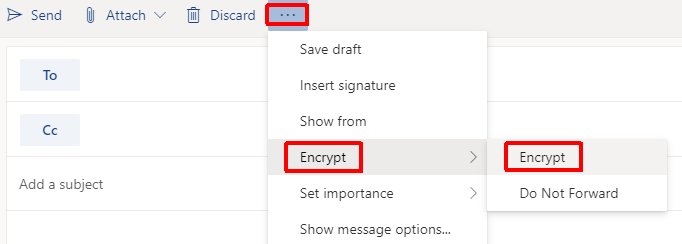
- To encrypt an email when composing a new one or replying to one, click on the three dots next to the discard option, then click on Encrypt and then the second Encrypt option.
- You will now see the message below at the top of the email confirming that the message will be encrypted.

- Compose and send your email as normal ensuring that the correct recipient(s) is selected.
Option 2 – Sending an encrypted email using the [encrypt] subject tag
- Open Outlook and select the new email option
- Add [encrypt] into the subject field including the square brackets

- Compose and send your email as normal ensuring that the correct recipient(s) is selected.