
Use the following guide to set up your email signature in Outlook and Outlook on the web.
For guidance on setting up your email signature on your phone – click here
Outlook
- Open the email signature template that has been shared with you, and then open Outlook and select New Email

- In the new message select Signature and then click on the Signatures… option

- Click New to create a new signature, give it a name and then click OK
- Within the Edit signature text box, paste the entire email signature text from the school email signature template, and then edit the name and job title (and phone number if applicable) lines with your information

- Set the default signature options for New messages and Replies/forwards to the new signature that you have just created
- Click OK to save the signature
Your signature will now be applied on all new emails and emails that you reply to or forward on.
Outlook on the web
- Log into https://portal.office.com and select Outlook

- Once Outlook has opened select the cog in the top right-hand corner and select View all Outlook settings


- Navigate to Email > Compose and reply > Email signature
- Click “New signature”, give it a name and then within the main text box paste the entire email signature text from the school email signature template
- Edit the name and job title (and phone number if applicable) lines with your information, then click on the Save option

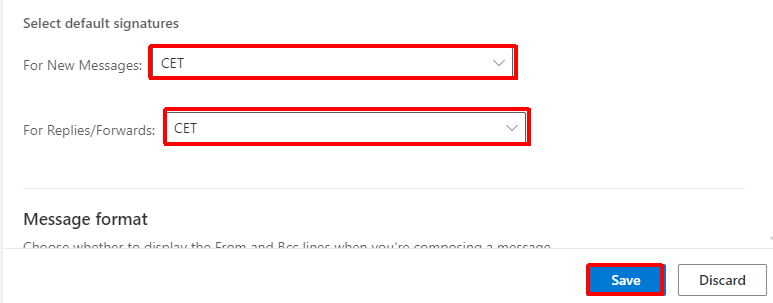
- Set the default signature options for New messages and Replies/forwards to the new signature that you have just created and then click on the Save option
Your signature will now be applied on all new emails and emails that you reply to or forward on.