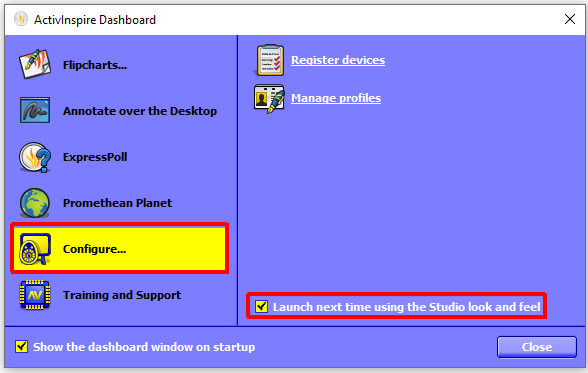
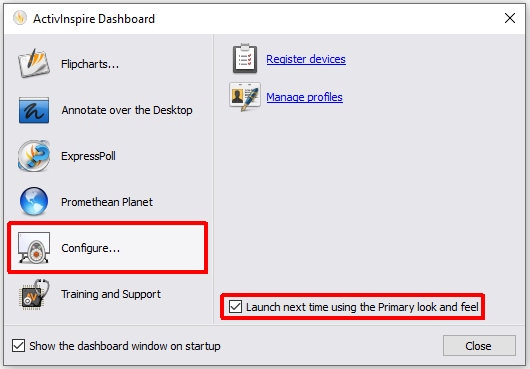
ActivInspire has to look and feels. Primary is more suited to primary schools and studio is more suited to secondary schools. to change between these looks use the following steps.
- When you launch ActivInspire you should see the ActivInspire dashboard. If you do not see this you can access the dashboard by selecting the view menu and Dashboard.
- On the dashboard select Configure and tick the box next to Launch next time in Studio/Primary look and feel.
- Close ActivInspire, when your reopen ActivInspire you will see the alternative view.