
Join a meeting via the meeting invite link
Click on the Join Microsoft Teams Meeting link in the Outlook meeting invite you were sent, this can be accessed by viewing your calendar and then double clicking on the calendar entry for the meeting.

- If you have Teams installed, it should automatically open and take you to the audio and video settings screen with the option to Join now.
- If you don’t have Teams installed, your Internet browser will open giving you an option to Join on the Web instead, click on this option and click OK to any prompts asking you for permission to access your camera and microphone.
- You’ll then be taken to the audio and video settings screen with the option to Join now. You may also be prompted to enter your name if you are joining the meeting as a guest.
Audio/video settings and Join now
Check your audio and video settings as listed below (some options may be unavailable when joining via the web):
- Toggle camera on or off
- Toggle background blur on or off if the camera is enabled (we recommend using this option if it’s available to you)
- Toggle microphone on or off (ensure this option is enabled). You may need to disable the microphone when not speaking if there is feedback/background noise.
- Click the settings option to check and change what audio and video devices are being used, you may need to use this if you have an external headset and/or webcam connected.
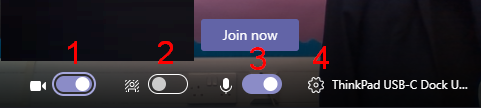
Once you’re happy with the settings click the Join now button to join the meeting.
Join a meeting via the Teams App
- Open the Teams App.
- Select the Calendar tab from the left-hand side menu.
- Select the meeting you would like to join and then click Join at the top right of the screen.
- You’ll now be taken to the audio and video settings screen with the option to Join now. Select the settings you wish to use and then click on the Join now option to join the meeting.
Teams functions during a meeting
Once the meeting has started you will have access to a number of settings at the bottom of the screen (the options will appear once you hover over them with your mouse).

- The camera icon will turn your webcam on or off.
- The microphone icon is used to mute or unmute your microphone. You may need to disable the microphone when not speaking if there is feedback/background noise.
- The upwards arrow icon is used for sharing your screen, PowerPoint or whiteboard click here for more information on screen sharing.
- The three dots icon gives access to further options such as device settings and full screen mode.
- The speech bubble opens the meeting chat window so you can send messages to the participants. This is a great way to send a link or other information during a meeting.
- The people icon allows you see who is currently in the meeting.
- The red phone icon is used to disconnect once the meeting has finished.